· UBIK365 Kft.
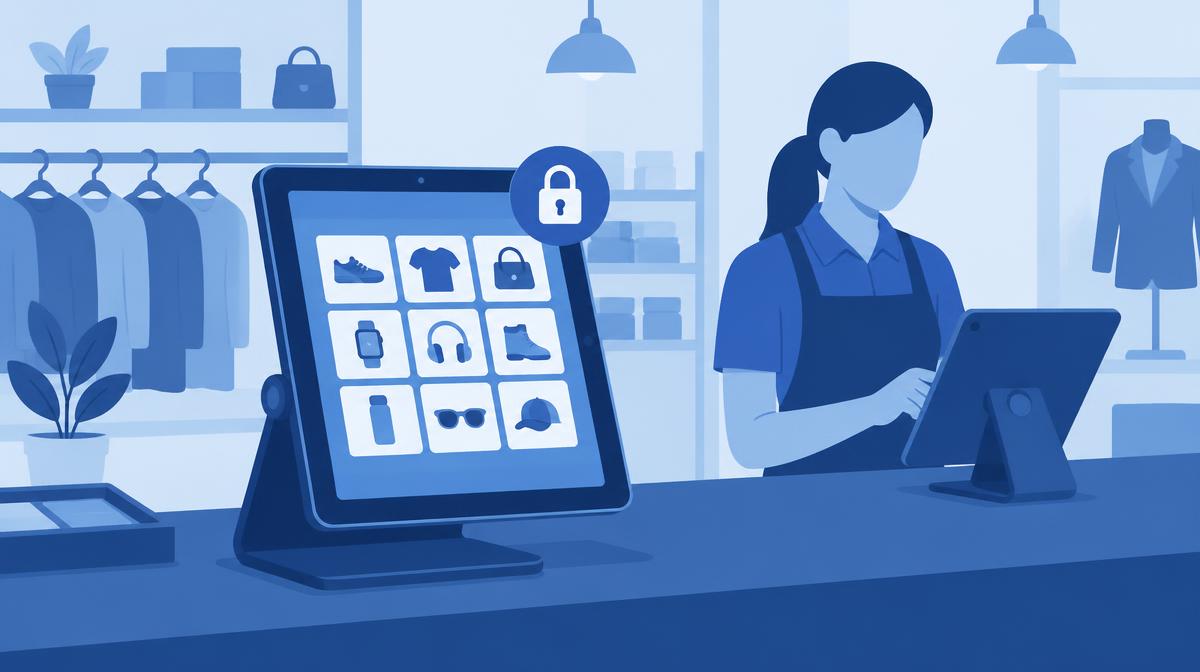
Customer and staff tablets on the shop floor: how to lock them down, update them and support them without site visits.
Tchibo stores use both customer-facing and staff tablets. The task is clearly defined: the devices must be locked down, their use restricted, and they must be managed remotely. This article shows how such an environment can be built in Samsung Knox Manage – with general steps that apply to other retail networks too.
Two device types, two different needs
Not every in-store tablet plays the same role. A customer tablet stands in a public space: anyone can pick it up, so it must show only the designated content. A staff tablet is a work tool: people work on it with a few allowed apps, but it isn't meant to be a general-purpose device either.
In Knox Manage the two types go into separate device groups, each with its own policy profile and kiosk configuration. That way a change only affects the devices it should.
Customer tablet: single-app kiosk
With Kiosk Wizard the customer tablet can be locked to a single app – for example a catalogue, or a designated website in Knox Browser. Users can't leave the kiosk, reach the settings or install apps.
- Single-app kiosk with the designated content.
- Settings menu and public app store blocked.
- Device feature restrictions: e.g. camera, USB data or screenshots blocked when not needed.
- Your own banner or logo on the kiosk screen.
Staff tablet: multi-app kiosk
For staff tablets a multi-app kiosk is the right fit: the home screen shows only the few apps needed for work, organised in folders, with a clock and a company banner. Allowed background apps – such as a sync service – can be specified separately.
In the new Knox Manage console, Kiosk builder is used to build multi-app kiosks on fully managed Android devices; in the original console, Kiosk Wizard offers the same.
Updates and support without visiting each store
Central app updates
When a new app version is released, it can be published centrally to the right device group from Managed Google Play or as an in-house package. Nobody has to travel from store to store or leave updating to staff.
Remote support
If a tablet doesn't work as it should, Knox Remote Support lets IT view and control the Android device's screen from the console, send files to it and fix the setting during the session. Roles determine who may start such a session.
Lost or stolen devices
In public spaces a device may go missing. It can be locked or wiped remotely from the console, and its last known location can be displayed.
What to consider when planning
A kiosk is only as good as the definition of its task. It pays to write down in advance exactly what should run on each device, who may change settings, and how stores report problems. On devices running Android 15 or later, note that the kiosk bar colour can no longer be changed since Knox Manage version 25.07.
Checklist for rolling out retail tablets in kiosk mode
- Define the device types (customer, staff) and the exact task of each.
- Create a separate device group and policy profile for each type.
- Decide between single- and multi-app kiosk, and which apps are allowed.
- Block the settings menu, the public app store and unnecessary device features.
- Set up central app deployment and updates from Managed Google Play or as in-house packages.
- Define remote support roles: who may start a session and whether user approval is required.
- Document the lost-device procedure (lock, wipe, last known location).
- Run a pilot in a few stores, then extend to the network.
If you are planning to roll out in-store tablets, we can help design the kiosk layout and policies – get in touch using the contact details below.